Charger & Compatibility
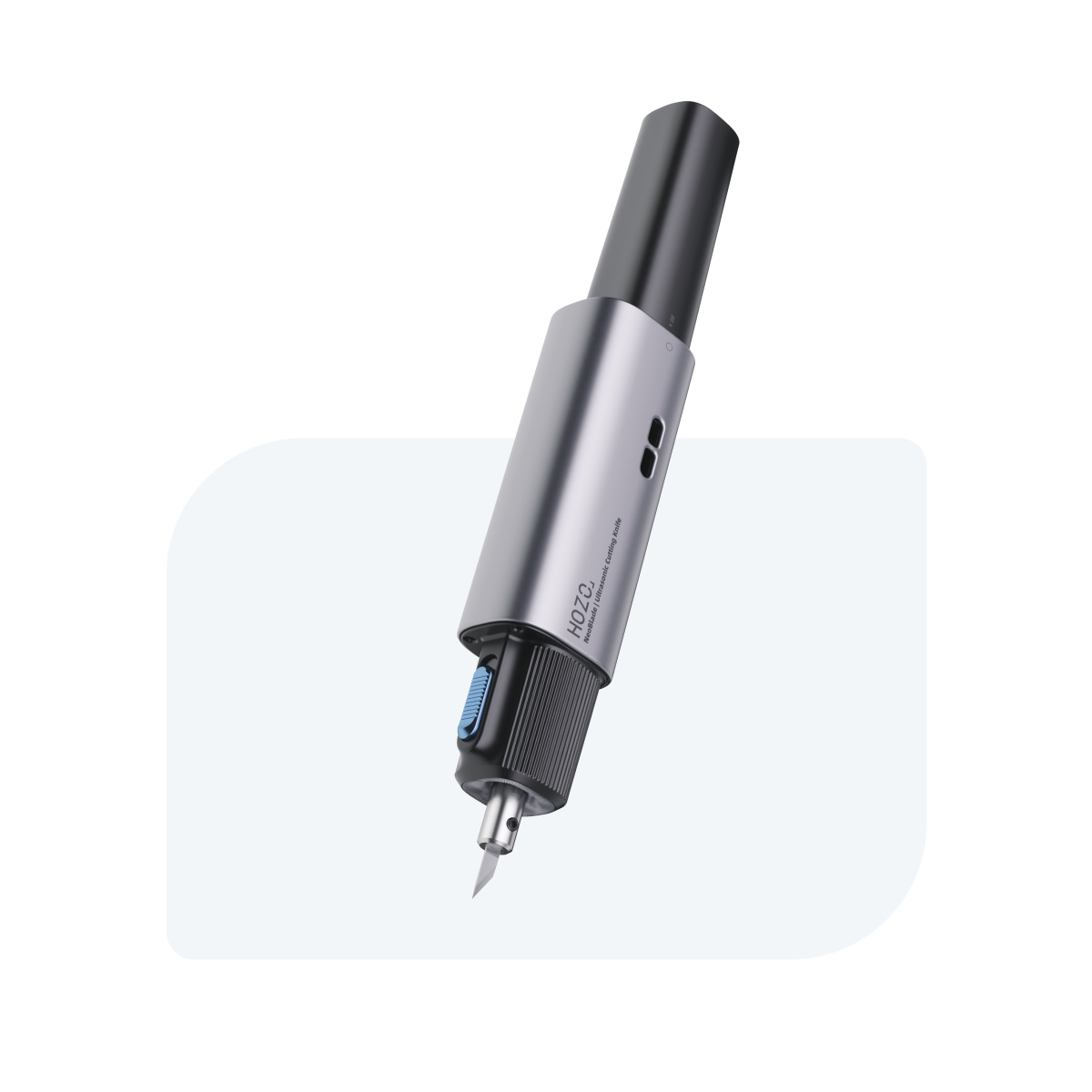
NeoBlade Support
Everything You Need to Know About NeoBlade!
What chargers does NeoBlade support? Will a 100W charger damage it?
NeoBlade supports any Type-C PD charger of 20W or higher that includes a 12V PD profile. Even if you use a 100W charger, PD negotiation ensures that only the required 12V profile is used, so the device will not be damaged.
Cable requirement: PD Type-C.
Turbo Dock & Charging
Why is an entire row—or both rows—of LEDs flashing on the Turbo Dock?
If an entire row or both rows of white LEDs flash simultaneously, the Turbo Dock is not receiving the required 12V USB-C PD input. This is different from the normal charging indication, where a single LED flashes to show charging progress.
Please check the following:
- Confirm that the power adapter supports USB-C Power Delivery (PD) and includes a 12V output profile. Wattage alone does not guarantee compatibility.
- Do not use a standard 5V/2A adapter, as it cannot provide the required 12V input.
- If using a multi-port charger, disconnect the other devices or connect the Turbo Dock to a dedicated port.
- For the most reliable charging, use the original HOZO power adapter and USB-C charging cable.
If an entire row or both rows continue flashing, test the Turbo Dock with another compatible 12V USB-C PD charger and cable.
For detailed charger requirements, please refer to the NeoBlade Charging Compatibility Guide.
The battery or main unit is in the Turbo Dock, but the LEDs don’t show charging. What should I check?
- Dock self-test: When powered on, both LED rows light for ~2 seconds and then turn off. This indicates normal status.
- Contact seating: Make sure the charging contacts on the battery or main unit are correctly aligned with the dock’s spring-loaded pins, then press it firmly into the dock to ensure proper contact.
- Inspect the contacts: Check that the charging contacts and the dock’s spring-loaded pins are not damaged, stuck, or blocked by debris
- Clean the contacts: Remove any dirt or oxidation with an alcohol wipe and allow the contacts to dry completely before charging again.
How long does a full charge take?
About 30 minutes for either the main unit or the battery pack.
If both the main unit and a battery are docked, does it slow charging?
No. The dock prioritizes charging the NeoBlade first. Once full, it automatically switches to charge the battery.
On the dock, the main-unit LEDs blink while the battery LEDs don’t—what does that mean?
Blinking LEDs on the top row = NeoBlade charging. Battery LEDs indicate current charge level (each LED ≈ 25%). Once the NeoBlade is full, the dock charges the battery.
Battery & Power
The battery is turned to ON but the indicator stays off—what now?
- Rotate to the Child-Lock position, then back to ON to ensure proper contact.
- Clean the three battery contacts with an alcohol wipe.
The battery shows a red light when turned on—what does that mean?
- The battery is low and needs recharging.
- The contacts may be oxidized—clean the three battery points and retry.
What position should the NeoBlade battery be in when charging?
For proper charging, it is recommended to rotate the battery to the ON position before connecting it to the charger.
Should I remove the NeoBlade battery when not in use?
Not necessarily. When not in use, rotate the battery to the Child Lock (🔒) position to prevent accidental activation. For long-term storage, this also helps reduce idle drain and extend standby time.
Blades & Installation
After replacing the blade, it feels loose or makes abnormal noise.
The blade screw may not be tightened enough. Gradually tighten until secure—do not overtighten.
The blade screw won’t tighten / feels stripped. What should I do?
- Repeated over-tightening can strip the threads. Replace the screw.
- Do not fully remove the screw when swapping blades. Loosen about 1.5 turns to release the blade, insert the new one, then re-tighten.
What materials can NeoBlade cut, and what thickness is recommended?
NeoBlade can cut a wide range of materials, including cardboard, foam, leather, plastics, acrylic, plywood, and carbon fiber. Recommended thickness varies by material and blade type.
Click here to see the 👉NeoBlade Cutting Guide for detailed material recommendations, cutting thicknesses, and blade-selection tips.
Operation & Safety
Key safety practices while cutting:
- If a blade breaks, let the tool cool for 1 minute before handling.
- Start with the tip down, adjusting pressure based on material hardness.
- Avoid sudden direction changes to prevent bending or breaking the blade.
- Keep your other hand at least 1 inch (2.5 cm) away from the blade.
- Ensure the screwdriver fits the screw slot before tightening—apply gradual force.
- Do not forcefully twist the battery during installation.
If abnormal noise occurs and the screw is tight, replace the blade immediately.
How should I maintain NeoBlade?
- Clean the battery’s three contacts regularly.
- Attach the protective cover when not in use to prevent accidental injury.
- For long-term storage, turn the battery to the Child-Lock position to reduce idle drain and extend lifespan.
Is it normal for the NeoBlade to stop after 2 minutes of continuous cutting?
Yes, this is normal. When continuous cutting mode is enabled, the NeoBlade will automatically stop after 2 minutes of continuous operation as a protection measure. To resume cutting, simply restart the device.
LED Indicators
What do the LEDs mean during use and charging?
Battery level: Blue >60% · Yellow >30% · Red = Low / poor contact.
Charging: White (breathing) = charging · White (steady) = full.
Operation: Blue = normal cutting · White = high power · Yellow = error.
Dock (continuous-mode switch): Two blue LEDs stay on while charging; they turn off after ~2 minutes.
Video Tutorial
User Manual Download